















Every podcast episode you publish is full of shareable moments, but finding them means re-listening, copying the good lines into a doc, then laying each one out in multiple sizes for Stories, square feed formats and more. It's the kind of task that steals hours that you could put into prepping for your next episode. To free up your time, I'm offering a workflow that does the whole thing automatically: AI pulls the transcript of your episode, and picks the most quotable lines, then Placid renders them into ready to use visuals.
That split is the whole idea: We're using AI to do the thinking (transcribe, then choose the quotes), then Placid does the rendering - your design, your fonts, your colors, filled with that quote and the guest's name and photo. So you're not generating images with AI that look slightly different every time. Instead, you're automating the production of your graphics. Same design, different content.
What we're building
We're creating a workflow that just needs a YouTube podcast episode URL, the guest's name, and a photo of them. It then:
- Fetches the episode transcript
- Extracts the 3 most shareable quotes
- Renders each quote into 3 Placid templates - Story, Square, and X - with the guest photo and name
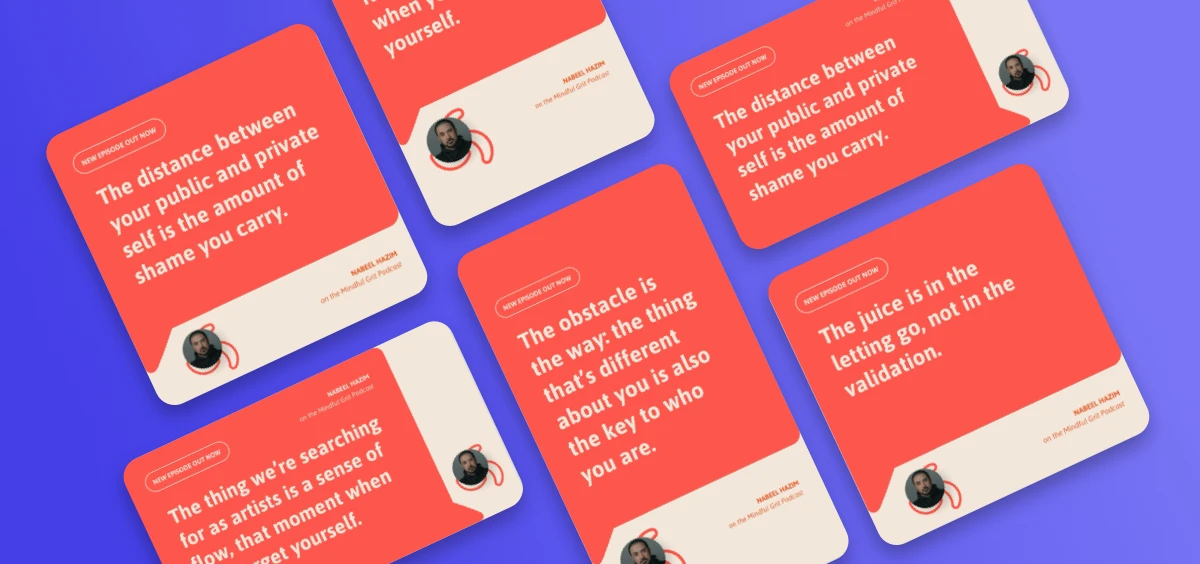
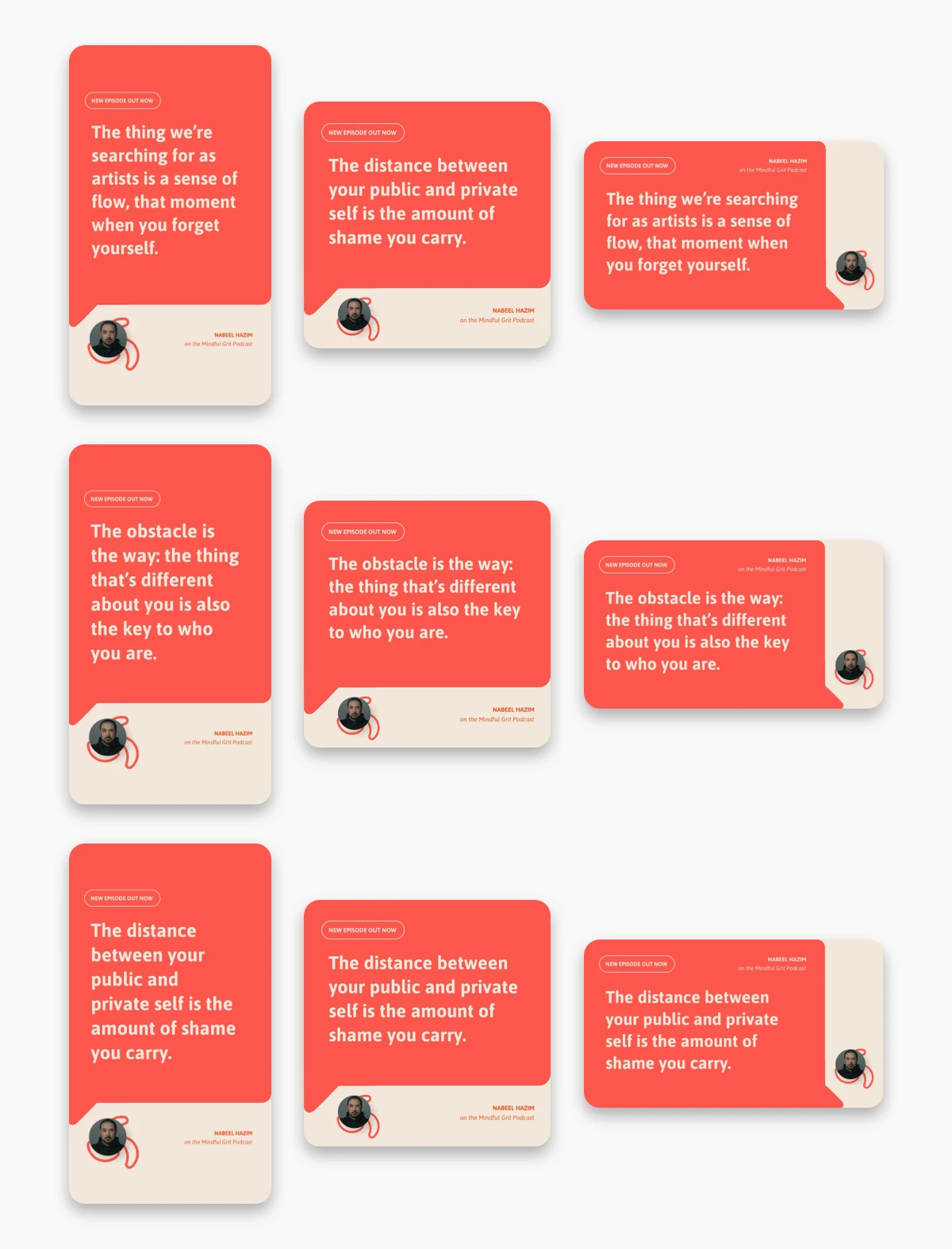
3 quotes × 3 formats = 9 on-brand graphics per episode, from one link.
We'll build it two ways: first as a no-code Make scenario you can run on autopilot and saves the images to your Dropbox, then as a lighter AI-agent version where you just ask an agent for the visuals, using the Supadata and Placid MCPs.
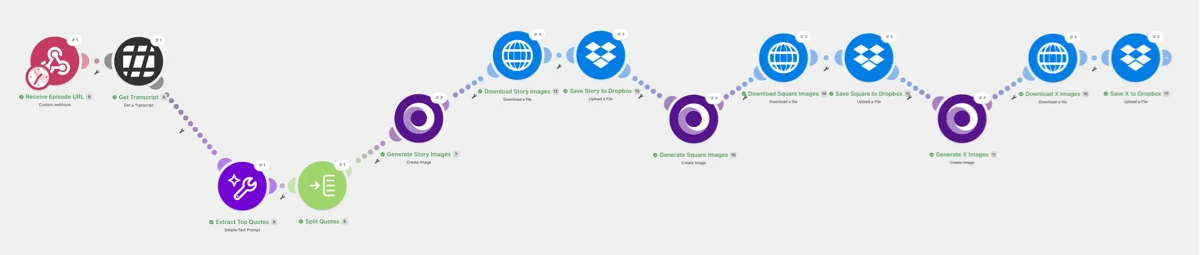
Here's the full Make scenario, left to right. Each module hands its output to the next.
Preparing the tools
To follow along, you will need accounts for Supadata (transcripts) and Placid (creative generation). They both use a few credits per run this workflow, but their free credits are enough to try it out without having to pay anything. If you want to recreate the no-code path you'll also need accounts for Make and Dropbox.
Set up a Placid project & create templates
We'll start with the Placid setup. Create a new Placid project and add the Make integration. You can also add the MCP integration to try the alternative agent workflow later.
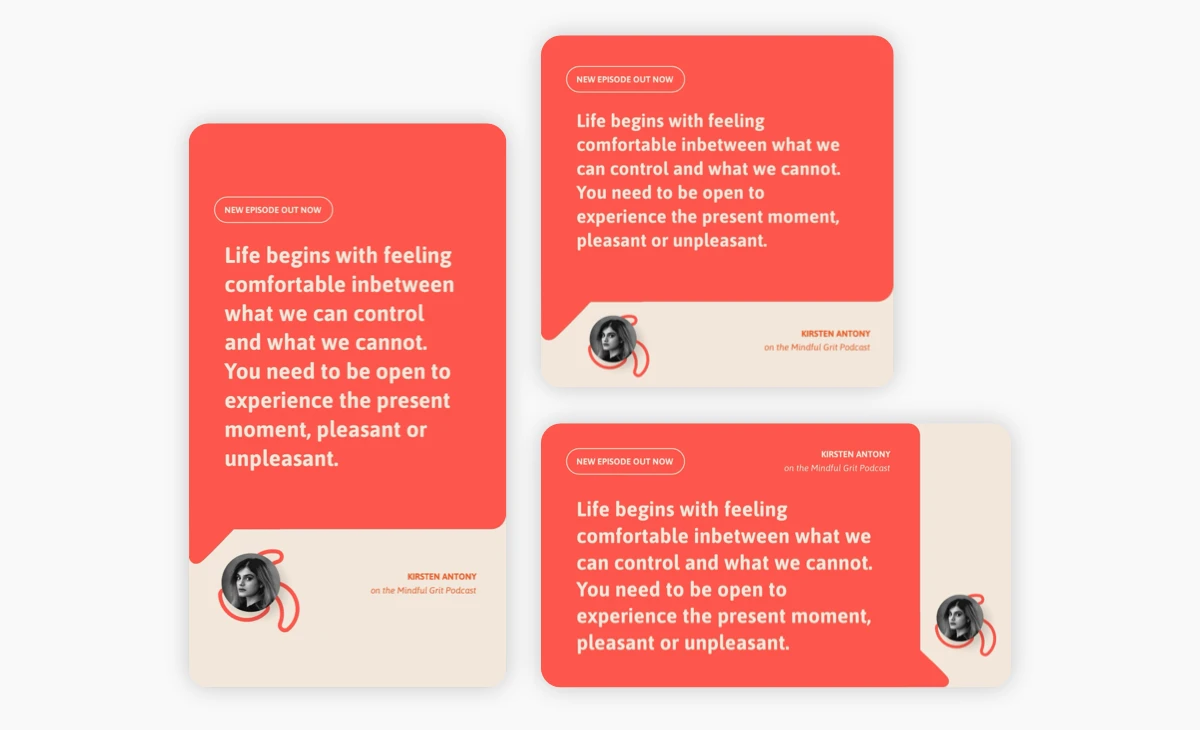
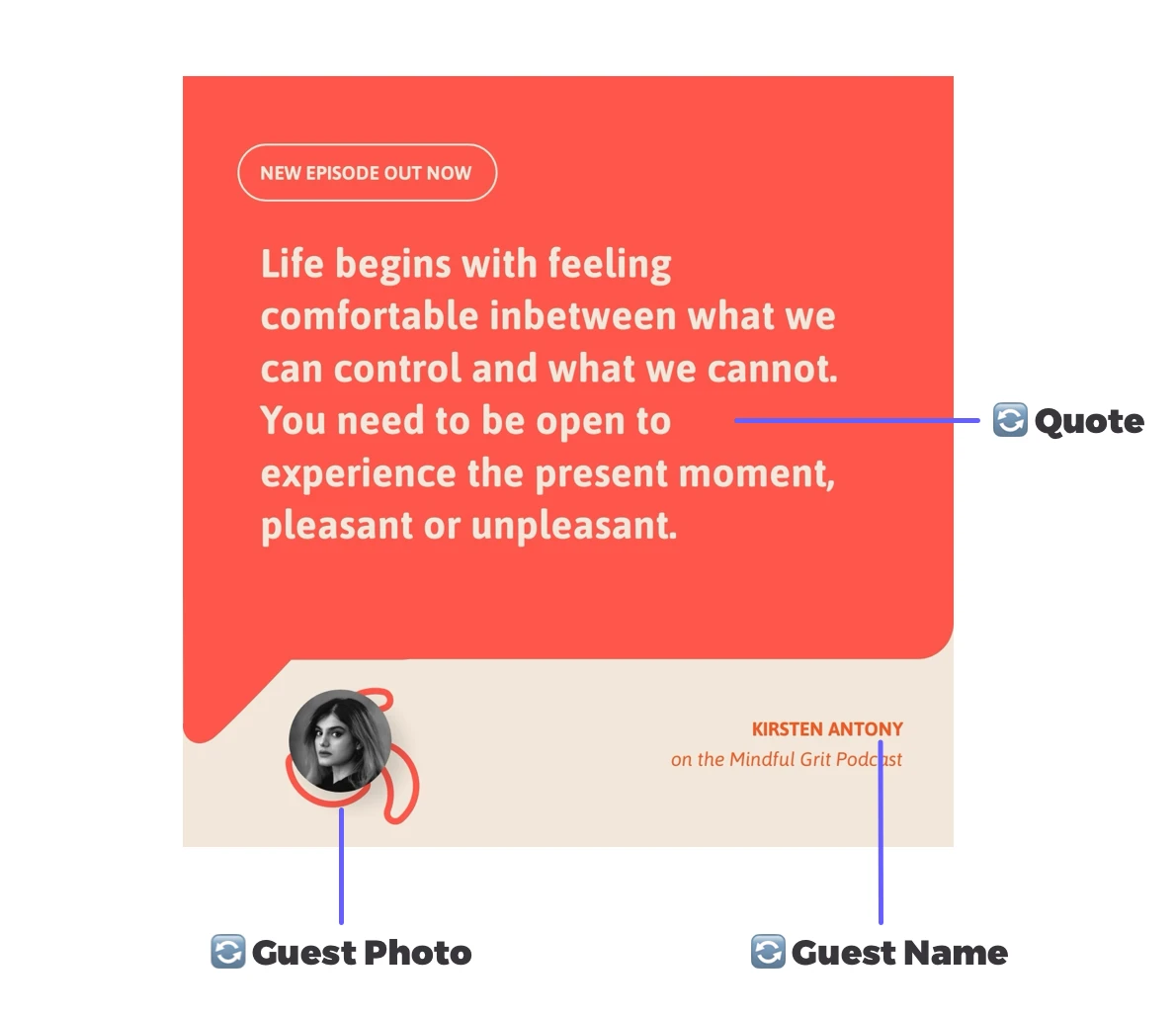
To generate the visuals, we're going to use 3 Placid templates: The same design in three sizes, one per channel. They share the same three dynamic layers, which is what lets one workflow fill all of them.
| Template | Dimensions | Dynamic layers |
|---|---|---|
| Podcast Quote Story | 1080×1920 | quote (text), guest-name (text), guest-photo (picture) |
| Podcast Quote Square | 1200×1200 | quote (text), guest-name (text), guest-photo (picture) |
| Podcast Quote X | 1600×900 | quote (text), guest-name (text), guest-photo (picture) |
Design these once in your Placid project or use one of our preset designs. Make sure to give the layers meaningful names like I did with quote, guest-name and guest-photo, because every step after this references them by name to swap the content inside.
Set up trigger event in Make
Now we're switching over to Make to create a new scenario and set up our workflow trigger.
Whatever kicks off the scenario has to hand it three things: the YouTube URL, the Guest Name, and the Guest Photo (a URL to the image). In practice, this could be provided by any tool your team already using:
- A new Airtable or Notion row - keep a table of episodes with URL, guest, and photo columns and trigger on each new row. Doubles as your archive.
- A submission form (Tally, Typeform, Fillout, Google Forms) - a producer pastes the URL, name, and photo into a simple form and gets the images back. Good when the person queuing episodes isn't in Make at all.
- A project-board card (Trello, Asana, ClickUp) - if you run episode production as a board, put those three fields on the card and trigger on card creation or a move to a "ready to promote" column.
For this build we'll use a plain Custom webhook, because it's the easy to fire for testing without having to set up any other tool. Add a Webhooks → Custom webhook module and name it something like Post YouTube URL. The following modules are going to read the link & guest data straight off it, so they're available for every render.
To configure the module, send the webhook URL that Make provides a test request with any API client – I used the free version of Postman. A minimal payload:
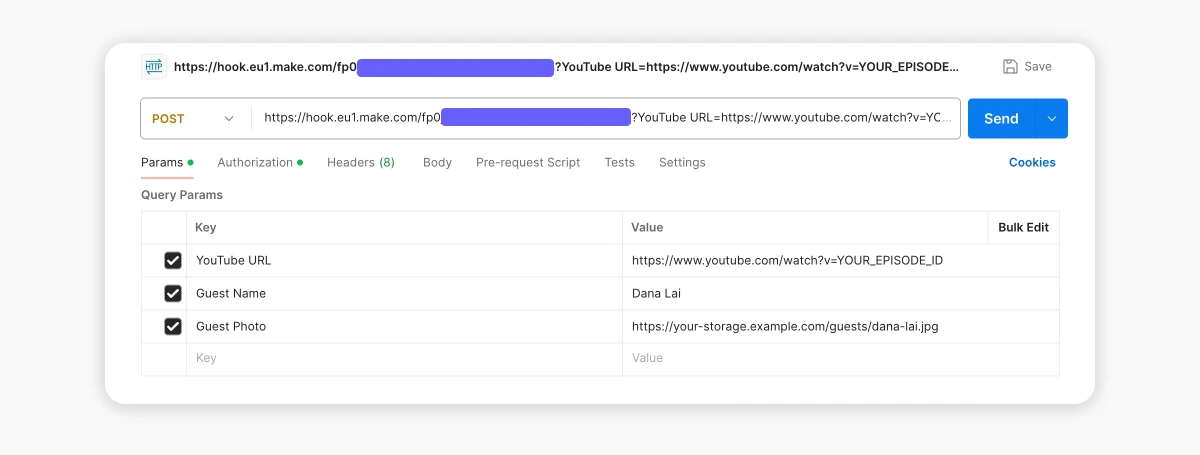
YouTube URL:  https://www.youtube.com/watch?v=YOUR_EPISODE_ID
Guest Name:   Dana Lai
Guest Photo:  https://your-storage.example.com/guests/dana-lai.jpg
Add the data as query params in a new POST request and hit send.
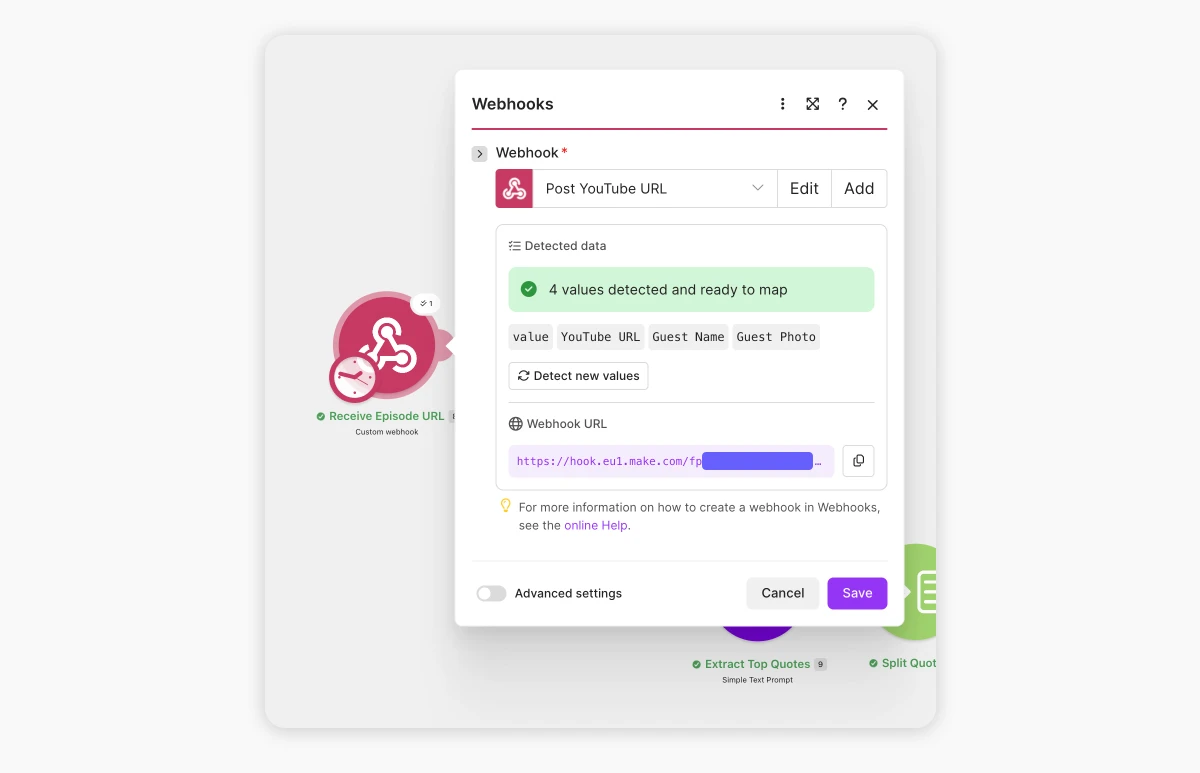
Once Make has received one request, it learns the data structure and the three fields become mappable in every later module. You can easily swap the webhook for an Airtable/Notion, form, or board trigger later, keeping the following steps the same.
Get the transcript via Supadata
Now add a Supadata → Get a Transcript module and connect your account. Map the webhook's YouTube URL into the video URL field, and set:
- Language preference (ISO 639-1):
en - Mode:
native(use the video's own captions; switch togenerateif an episode has none)
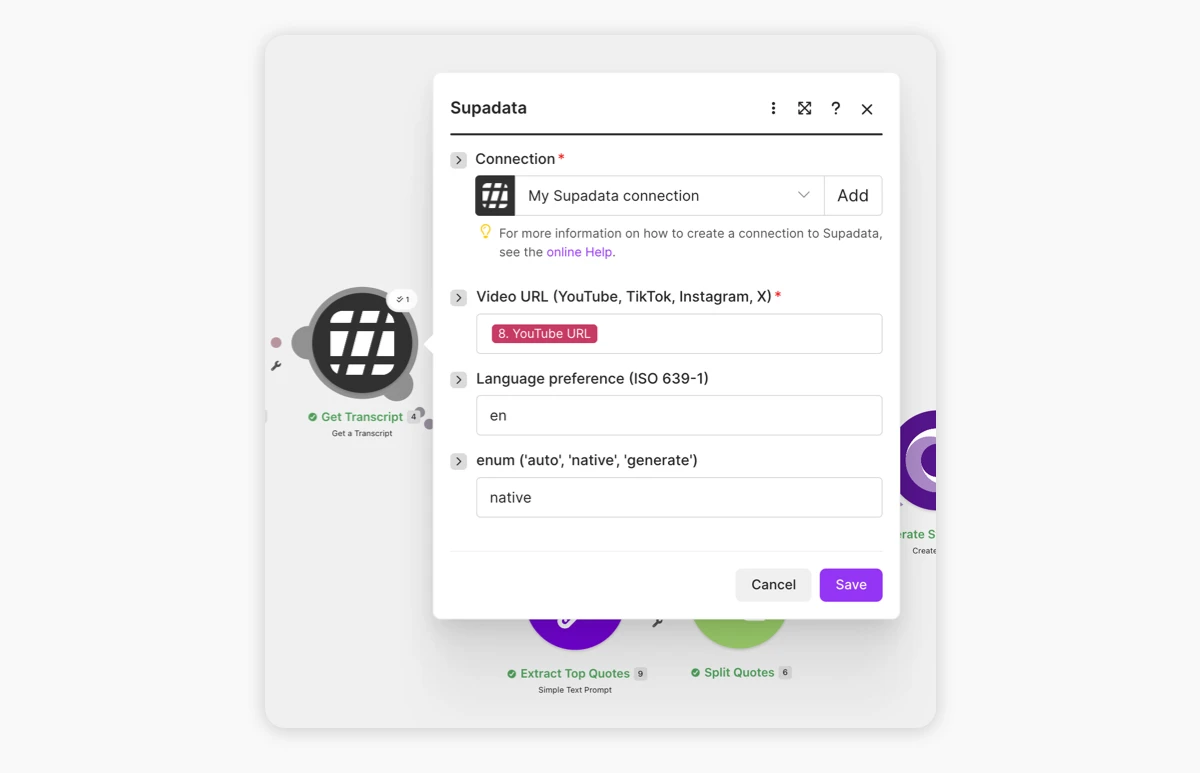
Supadata is going to return the transcript or the YouTube video (Supadata also handles TikTok, Instagram, and X video URLs, if your show lives somewhere other than YouTube). The next step then reads its Content.
Extract top quotes via AI
This is the one genuinely generative step. Add a Make AI Toolkit → Simple Text Prompt module (a small model is plenty here) and give it the transcript with a tight instruction:
Here is a podcast transcript. Extract the 3 most shareable and impactful quotes from the podcast guest — the kind that make people stop scrolling. Return ONLY the 3 quotes (around 130 characters is optimal), each on its own line, with no numbering, labels, bullet points, or extra text.

Transcript:
{{ 4.content }}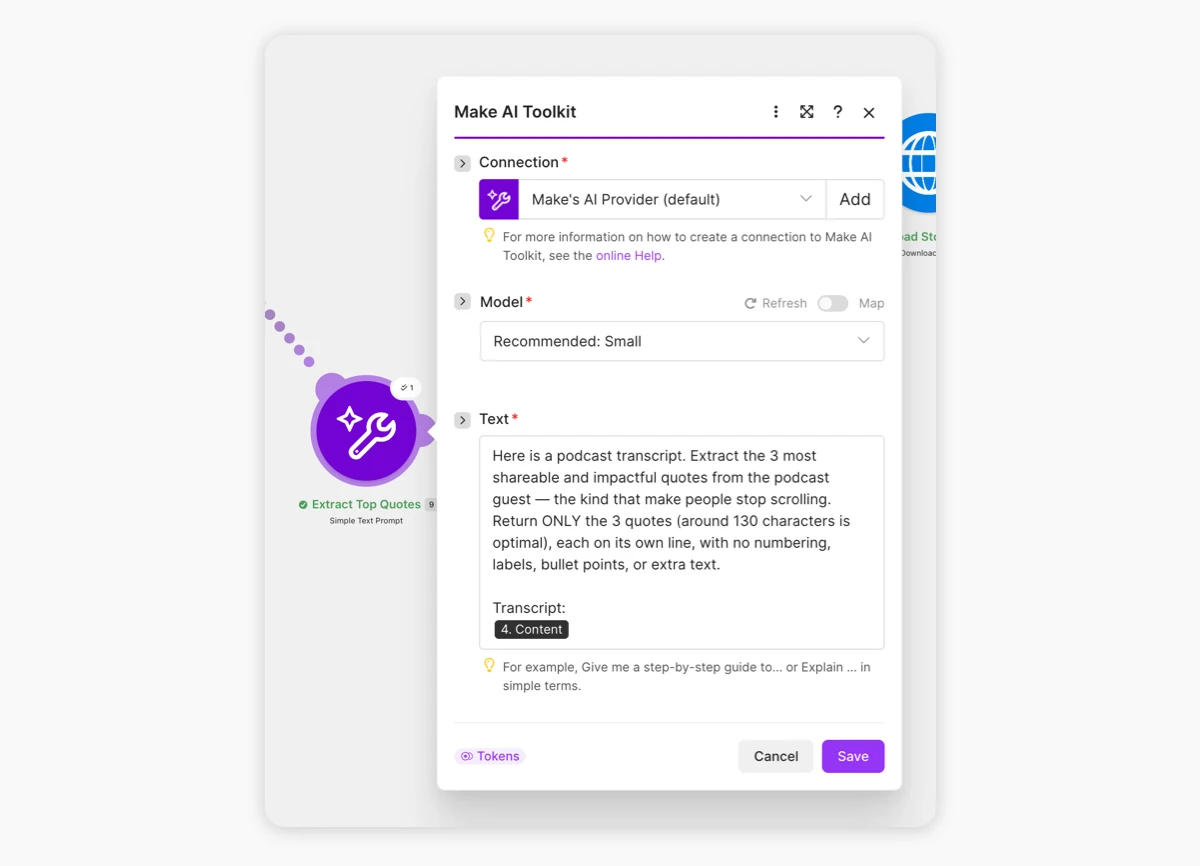
Asking for one quote per line and nothing else is deliberate - it makes the output easy to split up into three text items in the next step. The module returns the three quotes as its Answer.
Split the quotes via Iterator
Add an Iterator and set its array to split the AI's Answer, so each quote becomes its own array item:
{{ split(9.answer; newline) }}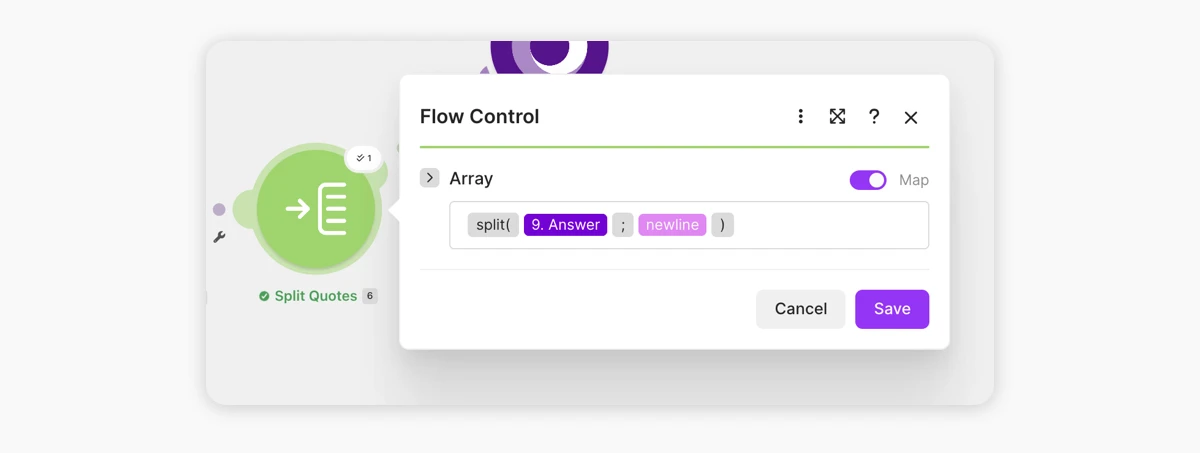
We're splitting the answer by each new line, so everything after the iterator now runs once per quote. Each pass exposes the current quote as the iterator's Value, which is what gets rendered on our quote graphics.
One quote at a time is what turns three quotes into nine images: the iterator loops three times, and inside each loop we render all three sizes.
Render and save the images
Now the rendering. For the Story format add a Placid module:
Render - Placid → Create Image. Connect your Placid project, choose the Podcast Quote Story template, and map the three layers.
quote(text) → the iterator's Value (the current quote)guest-name(text) → the webhook's Guest Nameguest-photo(picture) → the webhook's Guest Photo
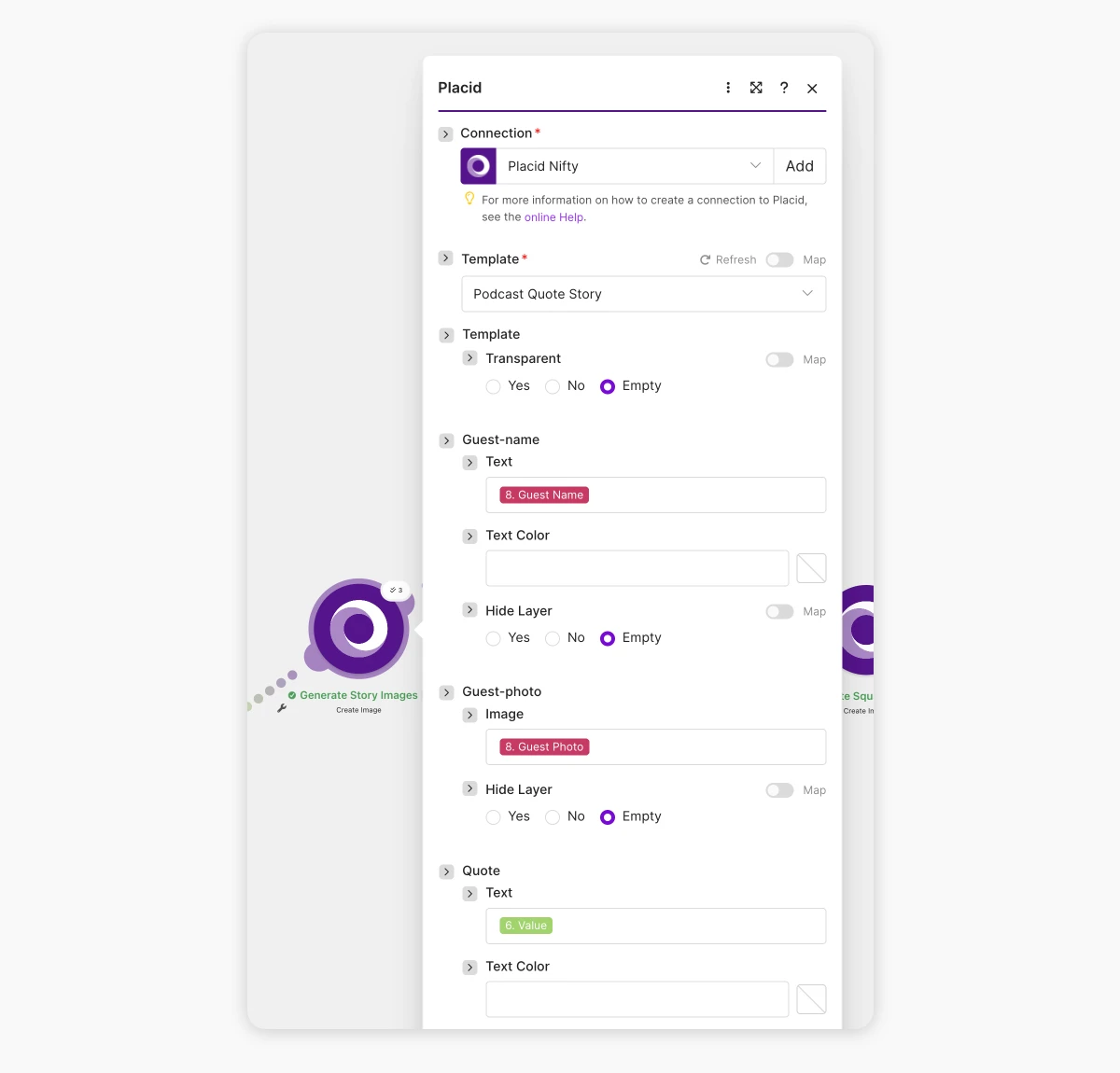
With this data, Placid can already render the graphic and returns an Image URL.
Download - HTTP → Get a file. Point it at that Image URL (no authentication needed) to fetch the actual rendered file, so you can store the image in the next step.
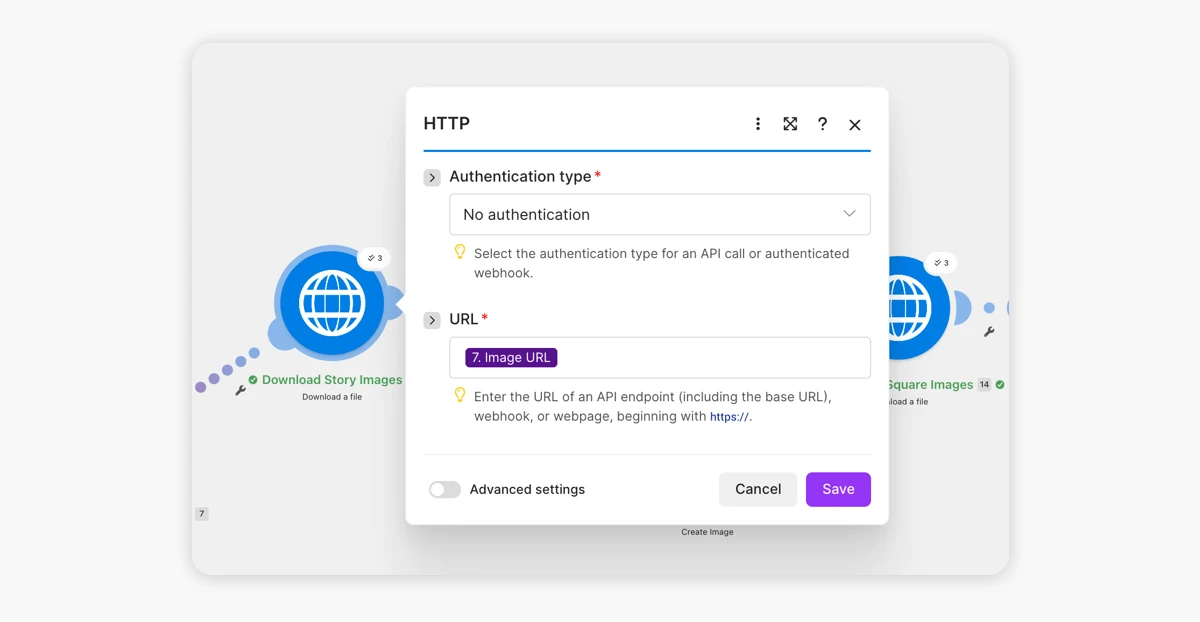
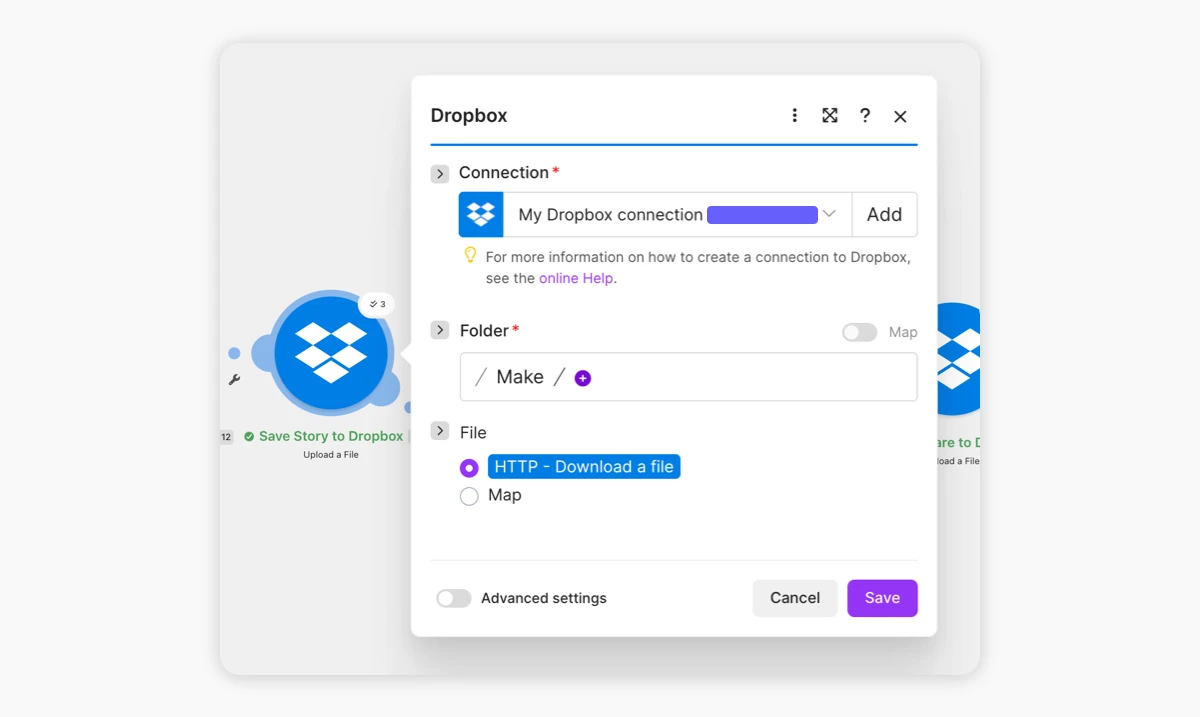
Save - Dropbox → Upload a file. Connect Dropbox, pick a destination folder (e.g. /podcast-quotes/), and pass it the file from the HTTP step.
Repeat for Square and X
The Square and X branches are the same three steps (render, download, save) with two changes: choose the Podcast Quote Square / Podcast Quote X template in the Placid module, and (optionally) a per-format Dropbox subfolder. The layer mappings are identical, because all three templates share the same quote, guest-name, and guest-photo layers. That's the payoff of naming them consistently: one mapping, three sizes.
The guest name and photo stay the same across all nine images in a run, while only the quote changes per iteration. That makes sense because we have just one guest per episode, but three of their quotes and three formats each.
Run the scenario
Send the webhook a real episode and hit Run once. Watch the modules light up: transcript in, three quotes out, then the render → download → save chain firing three times per format. When it settles, your Dropbox folder holds nine finished graphics. Point one of the triggers from step 1 at it and every new episode produces its share set without you touching a design.
This is what I got using a test episode:
Alternative: Just ask an agent
If you live in an AI agent already, you don't have to create a workflow at all. Supadata and Placid can be used via MCP servers, so you can hand the whole job to an agent in a single prompt.
Connect both MCPs to your agent (in Claude, that's Connectors → Add custom connector, using each service's MCP URL - the Placid MCP URL lives in the MCP tab of your Placid project).
After setup, prompt your agent with the same data the webhook would have carried:
Here's a podcast episode: https://www.youtube.com/watch?v=YOUR_EPISODE_ID. Use Supadata to get the transcript, then pull the 3 most shareable quotes. For each quote, use Placid to render it into the Podcast Quote Story, Podcast Quote Square, and Podcast Quote X templates. Set the guest-name layer to "Dana Lai" and the guest-photo layer to https://your-storage.example.com/guests/dana-lai.jpg. Give me back the rendered images.

The agent fetches the transcript, chooses the quotes, and calls Placid once per template. That gets you the same nine images. The agent is not using any generative AI, it only fills the layers in your design. This is the same pattern we use to generate LinkedIn carousels with Claude - the agent drives, Placid keeps it on-brand.
As this is not a fixed step-by-step workflow, you are more flexible. If you already have topics for the quote in mind ("They talked about something that helps them getting into flow state. I want a quote about that!"), you can just add it to the prompt.
What you end up with
To recap: We built an automation that deliver 9 posting-ready graphics for any published podcast episode. They're correctly sized for multiple channels, with the quotes already chosen for you from your actual content. The design is consistent, because it's your template and only the content changes. You can run it for every episode and a variety of visuals to promote it will be just ... there.
I think it's really powerful to combine creative automation with AI to get the best of both worlds: A deterministic design in a generative workflow ⚡️
Which path to pick? Use Make when you want it running unattended on every new episode - set-and-forget infrastructure. Use the agent & MCP when you want a human in the loop, or you're producing quotes ad hoc and would rather ask than maintain a scenario. Same division of labor either way: AI picks the words, Placid renders your design.
If you like the idea of a reliable visual production infrastructure and want to automate on a larger scale, you can also check out the Placid REST API. We have helped our customers automate in many ways over the years, and are