
















I don't know about you, but we practically spend our working days with our favourite LLM (currently, that's Claude for us). If you already use AI to support your content creation, you can expand your agent's toolkit to generate on-brand assets as well: In this tutorial, we'll show you how to automate the creation of a LinkedIn carousel with Claude and the Placid MCP!
What we're going to create
We're going to set up Placid and Claude so that you can use AI to flexibly generate LinkedIn carousel PDFs with a prompt. The automation will be based on dynamic templates, making sure you get brand-safe, consistent results while staying flexible.
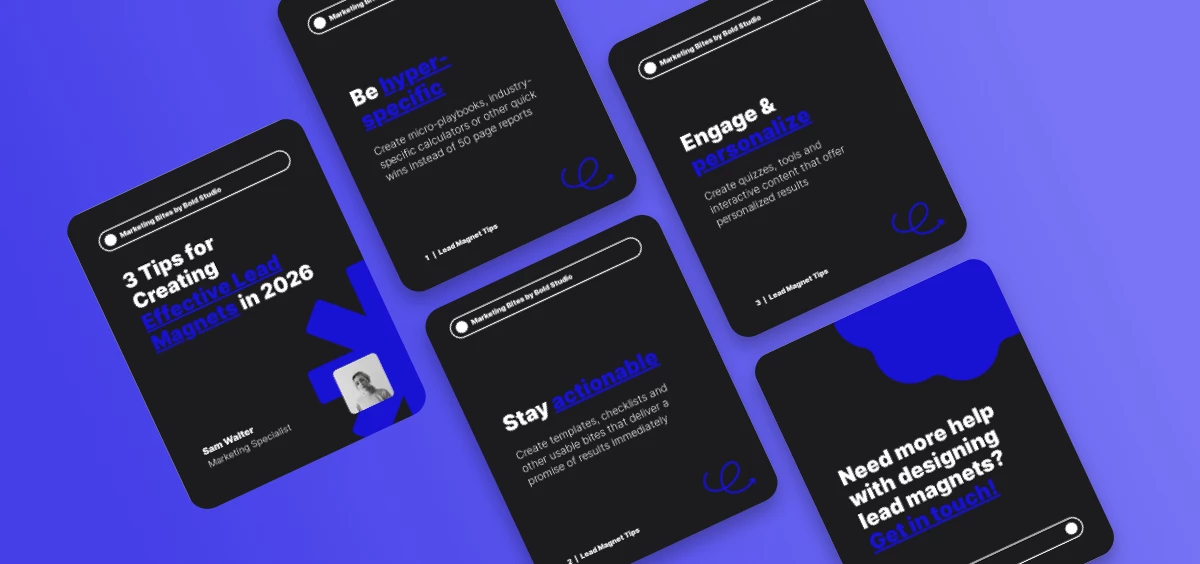
This result will look like this:
To follow along, you will need accounts for Claude and Placid. You can sign up for a free Placid trial to experiment.
Set up a Placid MCP project
First, we need to set up a placid.app project to prepare the carousel template for our creative generation.
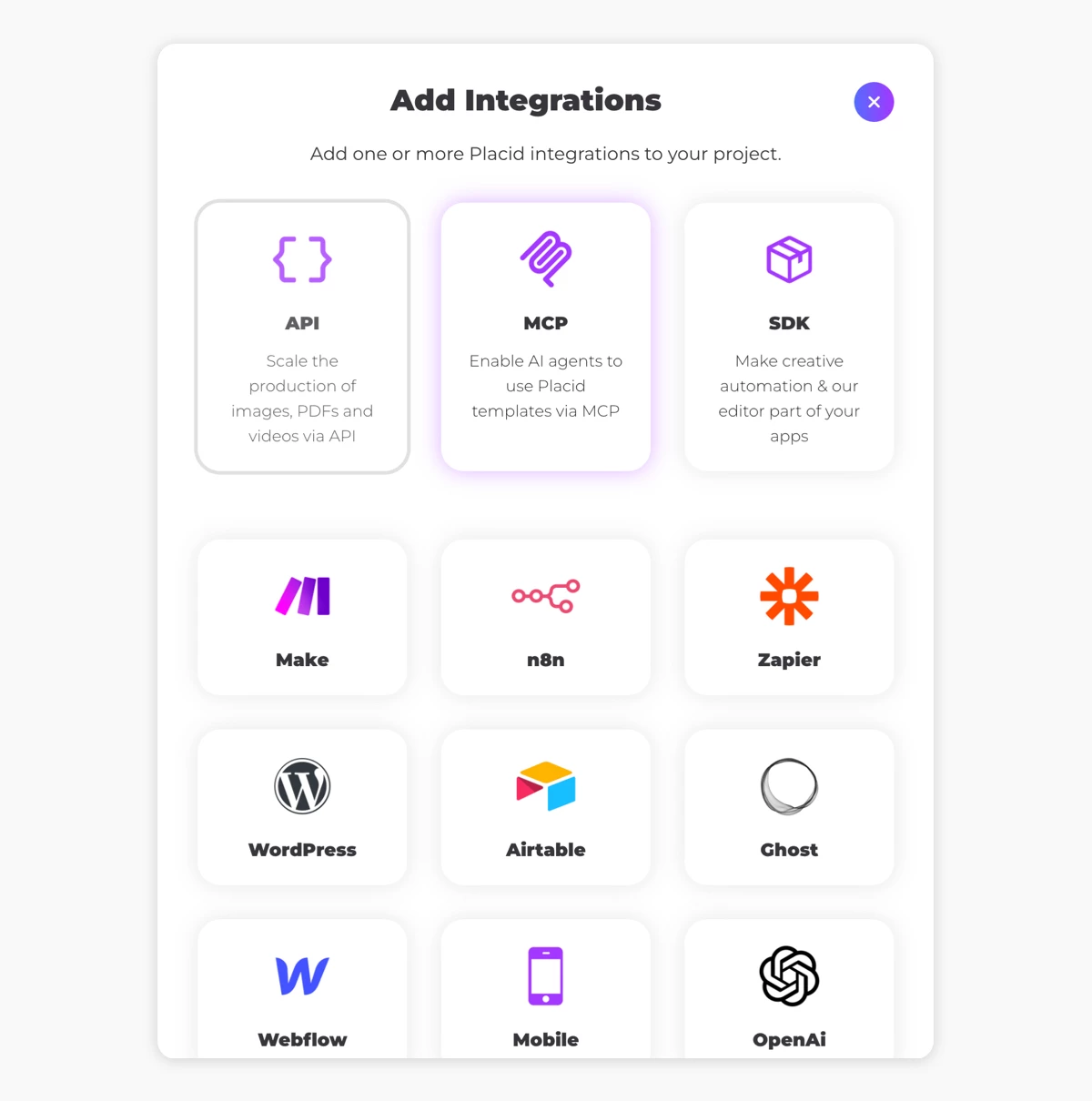
Add the MCP integration to an existing Placid project in the project settings, or create a new one under Projects > Add new project.
Design your carousel template
In the Templates tab of your project, you can create your templates.
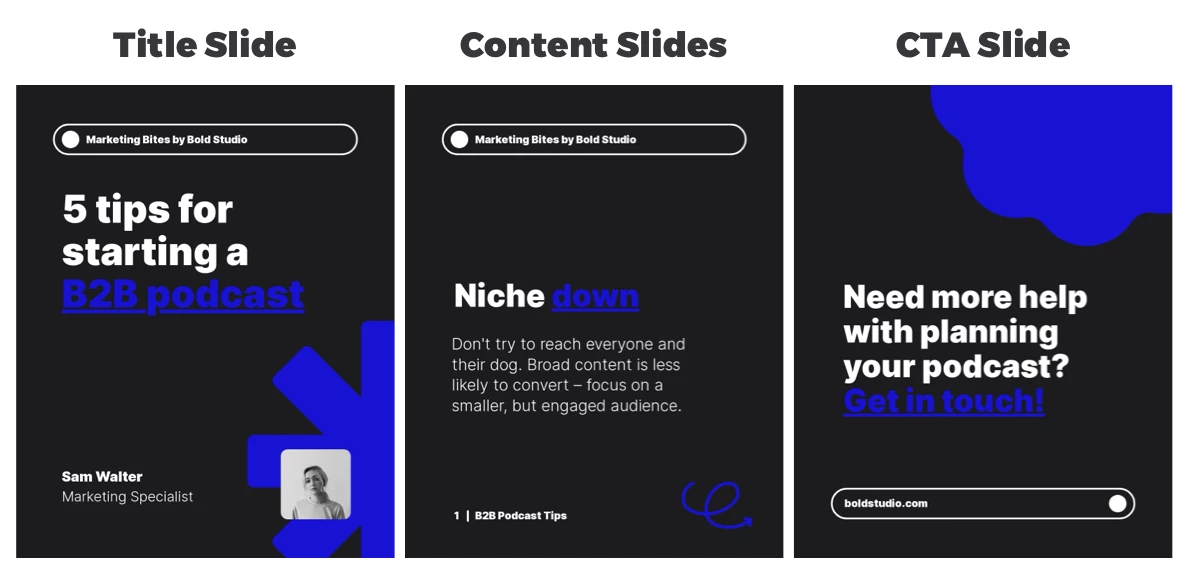
We're going to design 3 templates in total: One title slide, a content slide layout, and a CTA slide. Our three slide designs will get merged together into a single carousel PDF by Claude later.
Here are the layouts that I created for this tutorial (1080x1350px) – they are for a pretend marketing agency, featuring an author section of the marketing specialist who is going to post it:
You can create your own dynamic design templates with the Placid editor, using your brand colors and fonts.
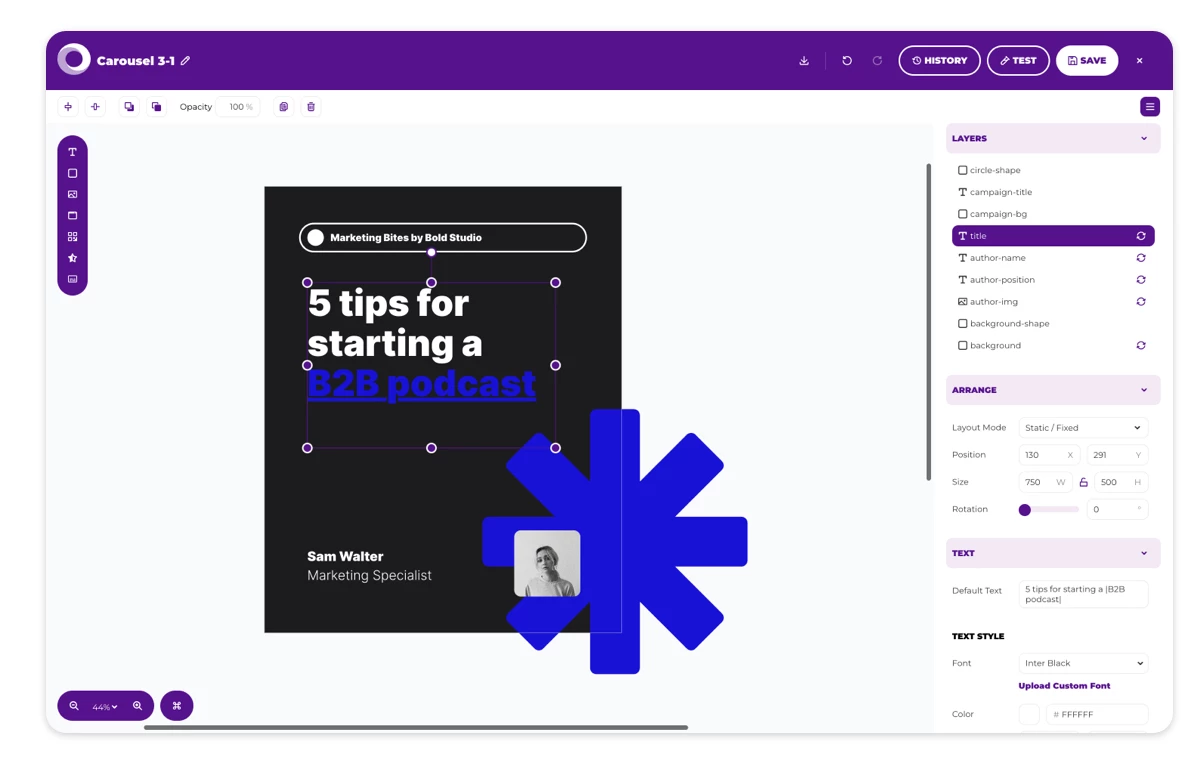
Placid templates contain 🔄 dynamic layers that can be filled with data to create on-brand variations of PDFs, images or videos. In our use case, Claude is going to use content from your prompt to generate ready-to-use carousel PDFs.
In your Placid automations, you can change text and images, but also change colors, set dynamic ratings and more.
In the templates I used in this tutorial, we're just going to change text for now (titles, copy, pagination, subtitles). I also used a secondary text style for highlighted text (blue and underlined) that I'll be going to use for words I want to emphasize.
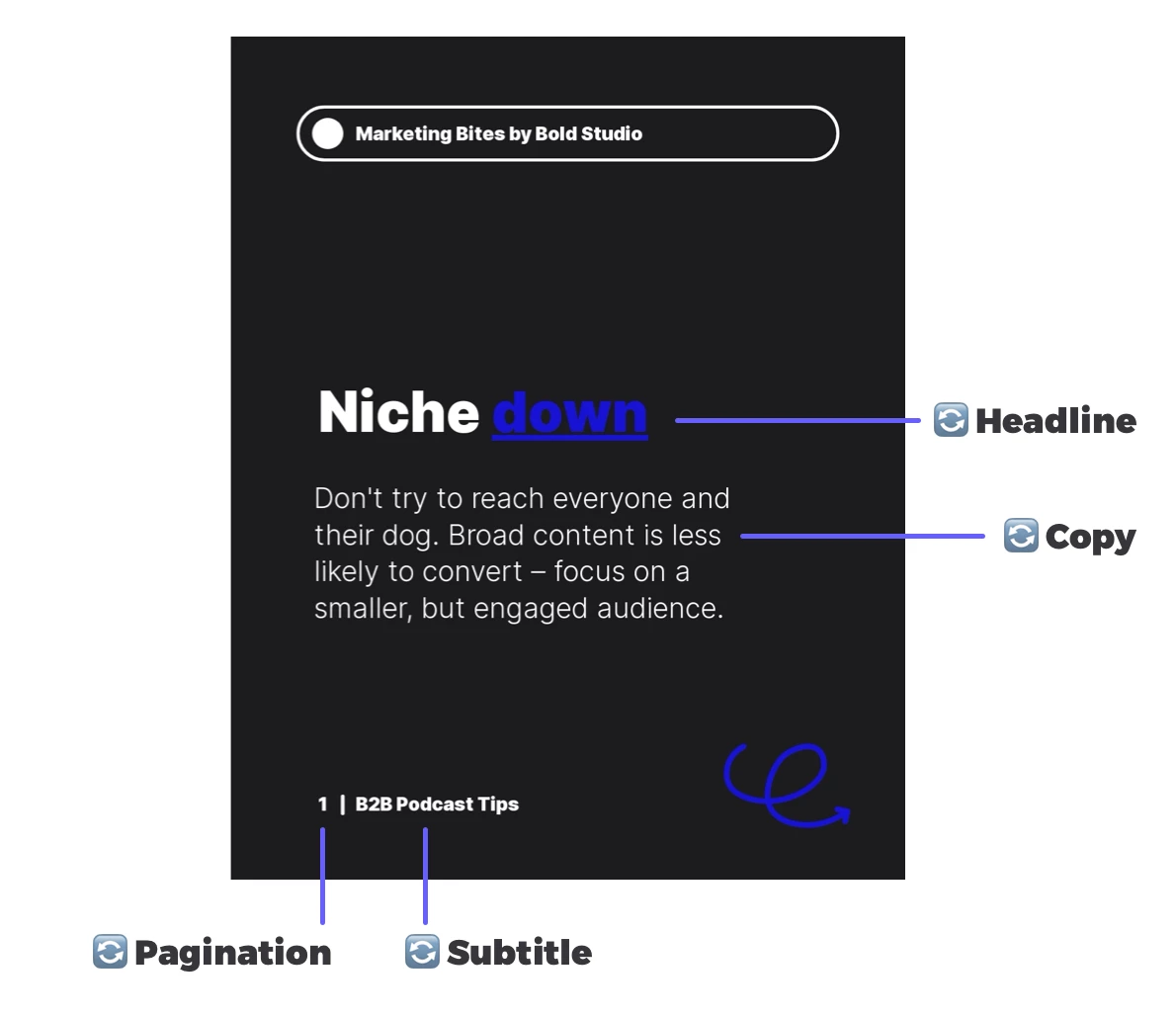
Pro tip: AI-assisted Placid automations work best if you give the layers in your templates meaningful names, so your agent (Claude) can understand what kind of information they contain. In my prompt later, I did not even mention the pagination, but Claude automatically numbered my slides correctly.
Connect Claude to your Placid project
Now we're going to make sure Claude has access to your Placid templates.
In any Claude conversation, click on the + button and go to Connectors > Manage Connectors.
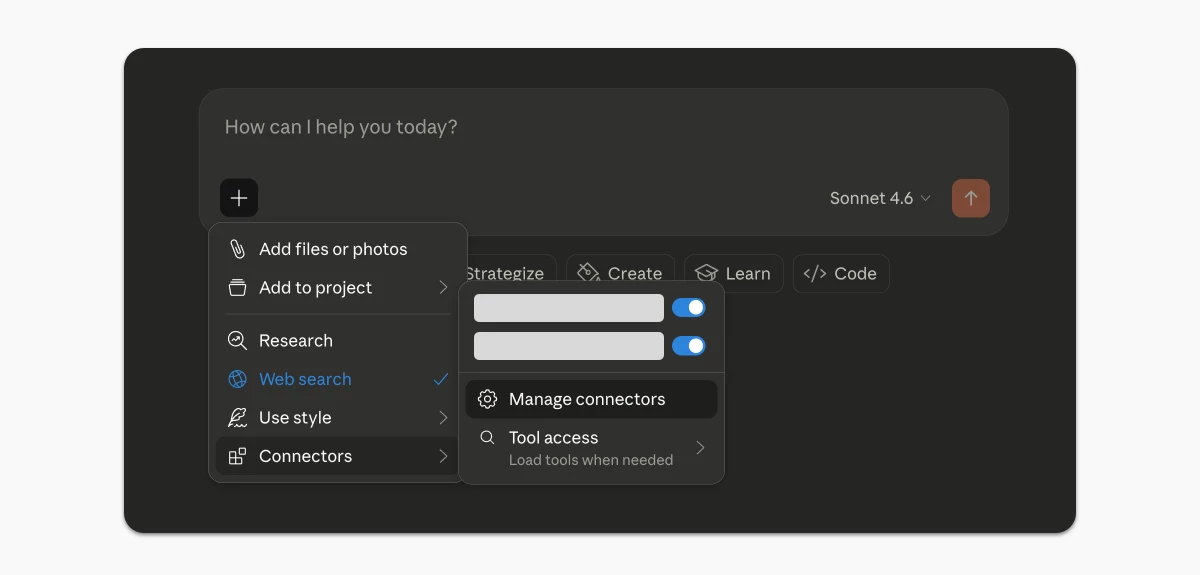
On the Manage Connectors screen, click the + button to add a connector and choose Add custom connector.
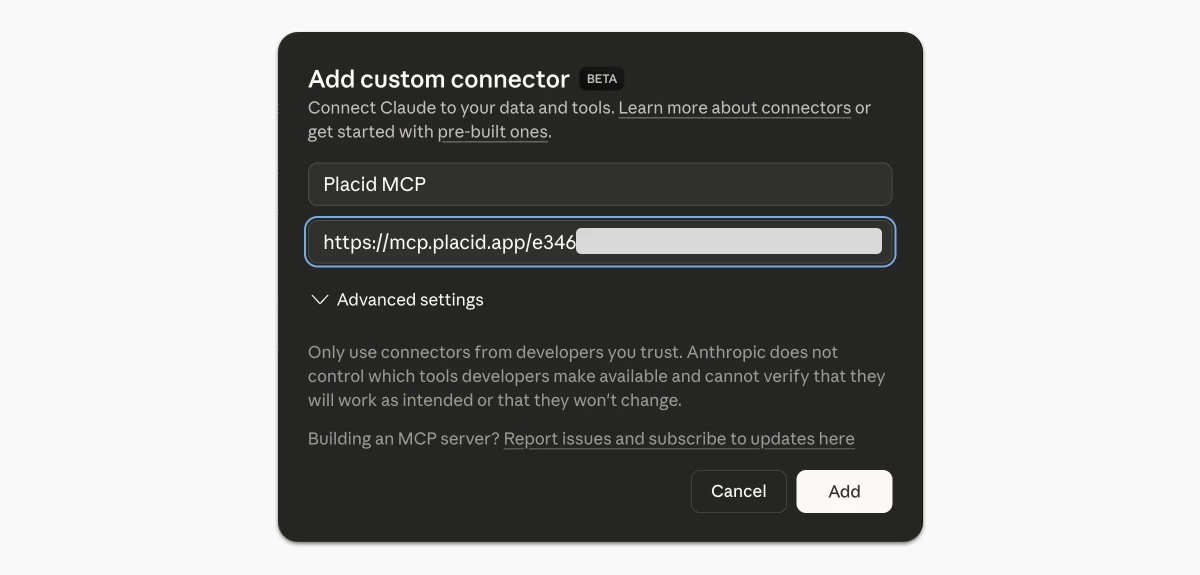
Name the connector Placid MCP (or something else you prefer), and paste the unique MCP server URL of your Placid project. You can find it in the MCP tab of your project in Placid. (There, you will also find some settings - for example to restrict the agent's access to specific templates. No need to change anything for this tutorial, but maybe that's interesting for your workflow going forward!)
Now, if you click on the + button in your conversations, the Placid MCP should be available in the list of active connectors (Connectors > Placid MCP).
Prompt Claude for a LinkedIn carousel PDF
Now you can already experiment asking Claude about your Placid project. You can for example ask it to list all your templates, or ask it which layers in a specific template are dynamic to learn more about what you can customize.
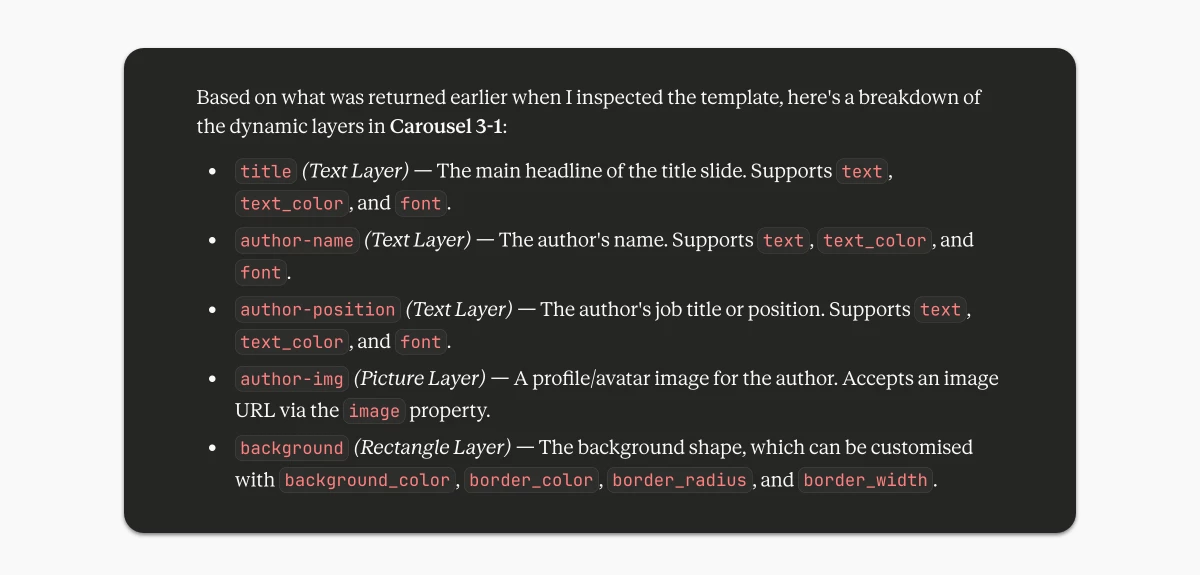
To generate visuals, it works best to tell Claude exactly which template(s) you want to use, using the template name or UUID from Placid.
I used this prompt to create a carousel with marketing tips for lead magnets:
Use the templates Carousel 3-1 (title slide), Carousel 3-2 (content slides), Carousel 3-3 (last slide) to create a PDF for a LinkedIn carousel. It should feature 3 tips for creating effective lead magnets in 2026. End with an actionable CTA "Need more help with designing lead magnets? Get in touch!" Here's the content for the slides:
- Title: Be hyper-specific - Copy: Create micro-playbooks, industry-specific calculators or other quick wins instead of 50 page reports
- Title: Offer actionable tools - Copy: Create templates, checklists and other usable bites that deliver a promise of results immediately
- Title: Engage & personalize - Copy: Create quizzes, tools and interactive content that offer personalized results
That already gave me a workable PDF result. Not bad, but I realized I forgot some things in my first prompt, like the text highlighting and subtitles. That was my correcting prompt for the second try:
Regenerate it using the text highlight style for the following keywords:
- Slide 1: "Effective Lead Magnets"
- Slide 2: "hyper-specific"
- Slide 3: Change the headline to "Stay actionable" and highlight the word "actionable"
- Slide 4: "personalize"
- Slide 5: "Get in touch!" Also, subtitles for all content slides should be "Lead Magnet Tips".
Et voilà, I was happy with the result!
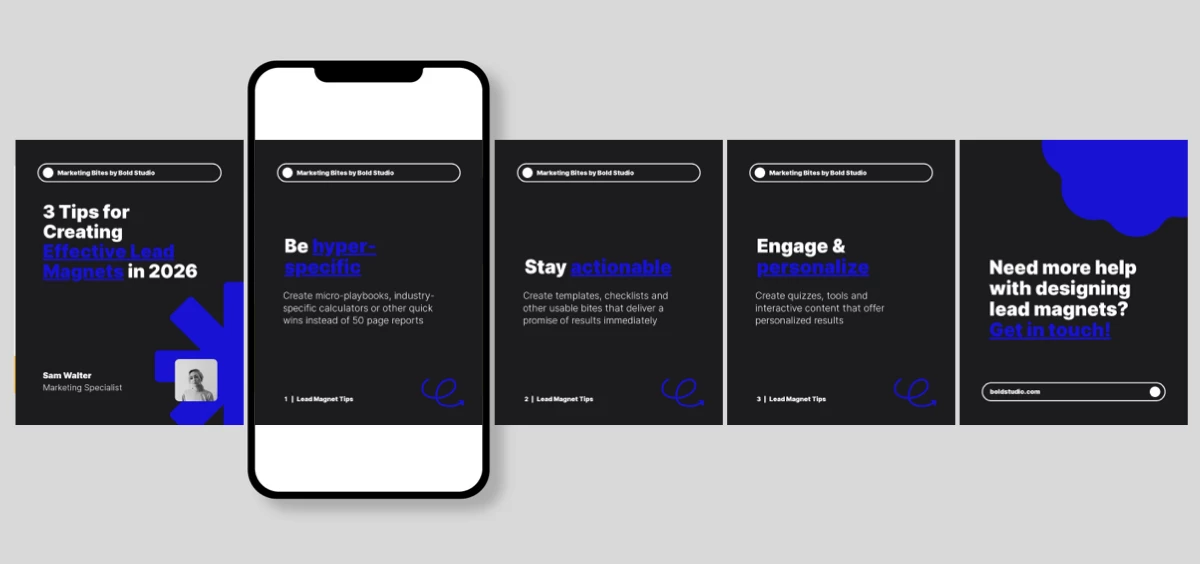
You can check out the final PDF 📄 (750KB) as well.
Next Steps
If you're feeling lazy, of course it also works to let Claude create your content and generate a carousel out of it. I tried this prompt:
Can you generate a similar carousel creating the content yourself? It should feature useful tips for B2B marketers - choose the specific topic yourself, something that could go viral maybe? 😅
... and got a carousel featuring 5 signs your B2B content is being ignored (check out the PDF result 📄 (791KB). Sounds swipeable to me 😉
To recap, we created a pretty flexible and complex automation here:
- I can now tell AI what content I want in a LinkedIn carousel, and get a consistent design result, ready-to-use.
- It merges 3 different templates into a document with dynamic content.
- The amount of slides is variable - 3 tips, 5 signs, 10 reasons?
- I can make corrections in natural language.
By the way: For creating the visuals for this blog post, I just told Claude to export the carousel slides as individual images, too. That's pretty handy!
For me, that's a very nice combination of design control and easy generation. What do you think? Maybe you already have more use cases in mind: Create personalized offer documents, certificates, ad variations and more!
If you're not sure how to make your ideas work, we're always